

Published 13 January 20256 min read
Tom Hadley
Content Writer
Order Rules are a powerful feature that can streamline your processes and enhance efficiency by automating specific actions based on predefined conditions. In this guide, we'll walk you through the basics of navigating and creating Order Rules within your system.
Getting Started: Accessing the Order Rules Section
1. Navigate to Settings
Begin by heading to the Settings section of your platform. This is where all customisation options are housed, including the Order Rules Section.
2. Locate the Order Rules Section
Once in Settings, find the Order Rules Section. Here, you'll see a list of existing rules in your account (if any). For a hands-on demonstration, we'll create a new rule.
Creating a New Rule
To create a new rule:
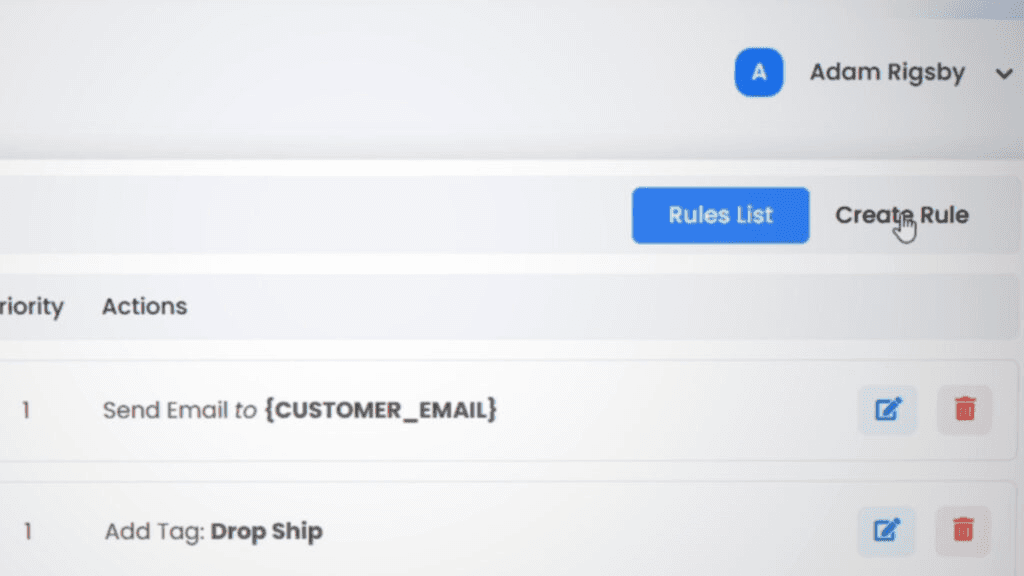
Click on “Create a Rule”
In the top-right corner of the Order Rules section, you'll find the Create a Rule button. Click it to start the process.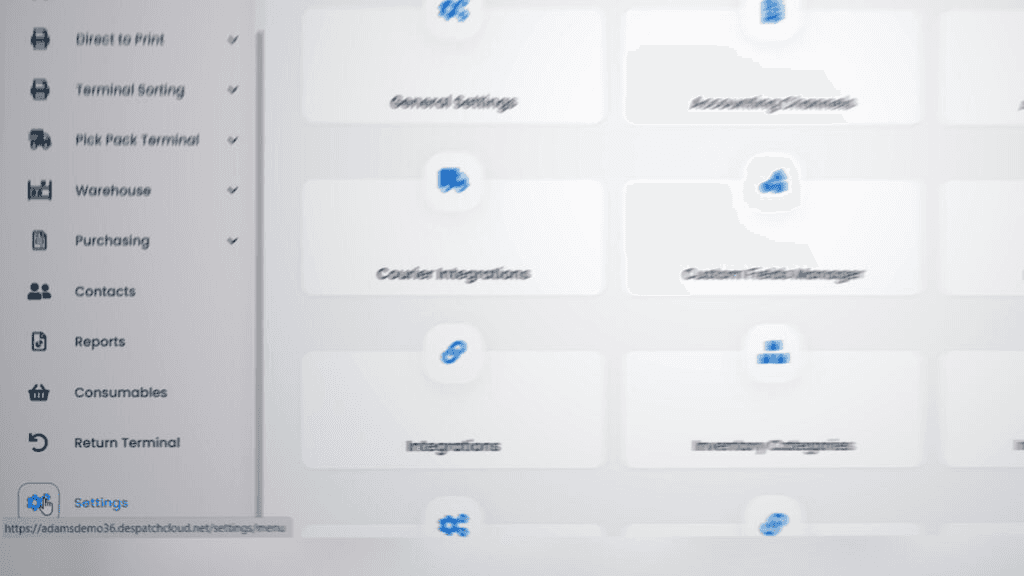
Name Your Rule
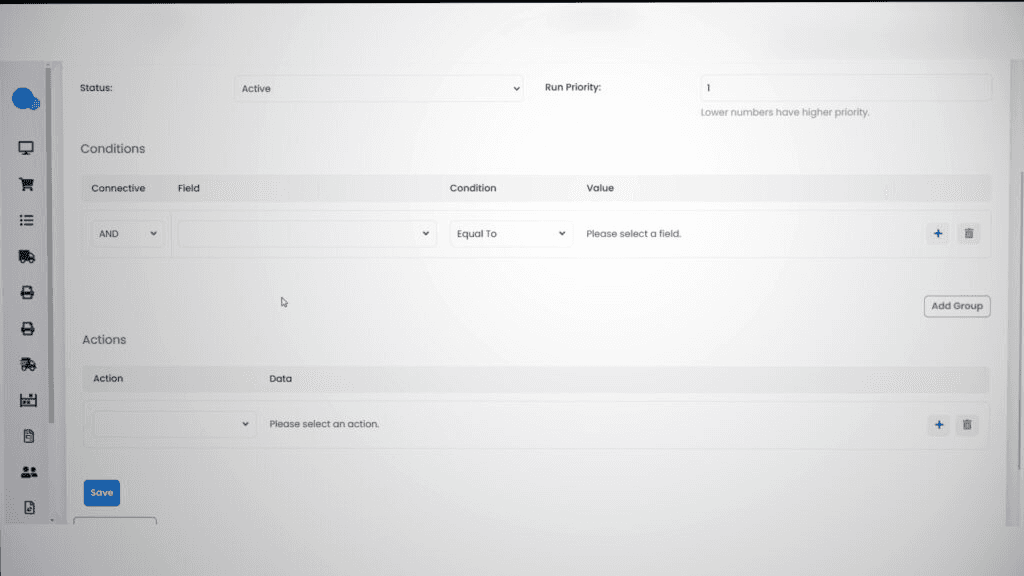
Provide a clear and descriptive name for your rule. This helps identify its purpose at a glance.Set Execution Limits
Use 0 if you want the rule to run continuously.
Alternatively, specify a limit on how many times the rule will execute.
Define Rule Status
Toggle the rule's active status on or off, depending on whether you want it to be immediately operational.Prioritise the Rule
Assign a priority number to the rule. Rules with higher priority (e.g., 1) will execute before others with lower priority numbers.
Adding Conditions & Actions
Defining Conditions
In the Conditions section, you'll find a variety of fields to choose from.
Select the conditions that trigger the rule. For example, you could set a condition based on order amount, product type, or customer behaviour.
Depending on the field you choose, additional options will appear to refine the condition further.
Setting Actions
In the Actions section, choose what should happen when the conditions are met.
Actions might include sending an email, updating a status, or applying a discount.
Each action comes with its own customisable options.
Customising Further
To create more complex rules:
Add multiple conditions to fine-tune when the rule is triggered.
Specify additional actions to handle various scenarios in one rule.
Making Order Rules Simple or Complex
Order Rules can be as straightforward or intricate as your workflow demands:
For simple automation, use one or two conditions and actions.
For advanced automation, combine multiple conditions and actions to handle complex scenarios seamlessly.
Final Thoughts
Order Rules provide unparalleled flexibility, allowing you to automate tasks with precision. Whether you need a basic setup or a detailed configuration, the system empowers you to tailor rules to your needs. Start experimenting with Order Rules today to unlock their full potential!